Outstanding Payments
Track pending e-transfers, invoices, and unpaid packages.
Staff & Scheduling
Manage staff hours, online booking, waitlist, promotions and pay rates.
Scheduling Options How-to
Lets authorised staff book clients outside set hours or during break slots when needed. Does not affect the public client booking page.
Online Client Booking How-to
Allow clients to book their own appointments through a shareable link. Appointment slot lengths are set per session type above.
Set each staff member's working hours. Clients will only see times when their chosen staff member is available. Staff not listed below won't appear on the booking page.
Promotional Discount
Create a discount code for single session payments. Choose between a percentage or flat dollar amount off the session rate. This does not apply to prepaid packages.
Waitlist
Practitioner Session Expenses
Set how much each practitioner earns per session type. This is used to calculate payroll costs, gross margin, and profitability on the Income dashboard.
Business Information How-to
Your business name appears in the header and will be used in calendar invites and emails sent to your clients.
Your logo appears on the client booking page and in email communications. Upload a square image — max 600×600px, under 2MB. PNG or JPG recommended.
This creates a clean, branded URL for your business. It's used in your client booking page and browser address bar.
Required on insurance receipts if your business charges GST/HST. This appears on all receipts unless a practitioner has their own GST/HST number set.
Choose your account type to show the right features. Clinics see SOAP notes, body charts, clinical templates, and MyoMind. Studios see class scheduling and attendance tracking. Shared features like booking, calendar, payments, and reports are always available.
This tells MyoMind what kind of practice you run — it shapes the language, advice, and clinical focus of all AI-generated briefs and notes.
Session Types How-to
Define the types of sessions your studio offers (1–5 types). Set each type's default price and appointment slot length — these apply to both internal calendar bookings and external online client bookings. Client-specific rates can override the default price. Check 2+ Clients to allow multiple clients (up to 16) to sign up for a single session.
Controls whether sessions are billed at the session type's default rate for everyone, or whether individual clients can have custom rates set on their profile.
Rooms & Equipment
Add the rooms and equipment your practice uses. Each resource gets its own slot in the booking dropdown and cannot be double-booked. You can mix rooms and equipment freely, or use just one type. Completely optional — leave any slots blank that you don't need.
Payment Settings How-to
Connect Stripe to charge clients directly from session bookings. Invoicing for e-Transfer and cash/prepaid tracking are always available.
Add Canadian GST/HST/PST to session and package charges
Charge client cards directly. Funds go to your Stripe account.
Send payment requests for clients who pay via Interac e-Transfer.
Record cash or cheque payments received in person.
Cancellation Policy How-to
Define your studio's cancellation window and how late cancellations and no-shows are handled. This applies to both prepaid packages and single-session clients.
Payment & Prepaid Settings
Prepaid Packages
Set up up to 6 prepaid packages. Each package includes a set number of sessions at a fixed price, valid for a specific time period. Assign packages to clients from their profile.
Liability Waiver
Configure how your practice collects liability waivers from clients. You can send a digital signing link or track paper waivers manually.
Digital waivers are off. A manual "Waiver on File" checkbox will appear on each client profile for paper-based tracking. Toggle digital waivers on above to send signing links.
Notes & Body Chart
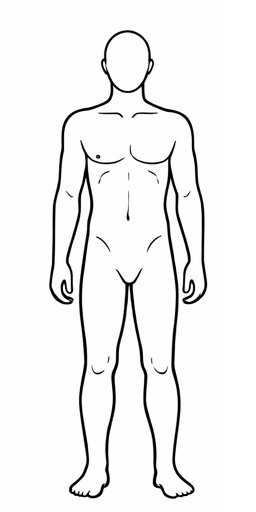
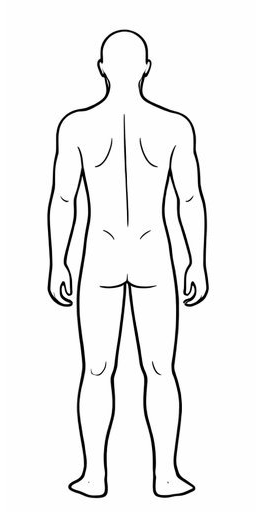
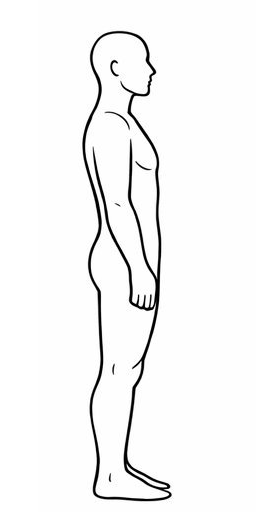
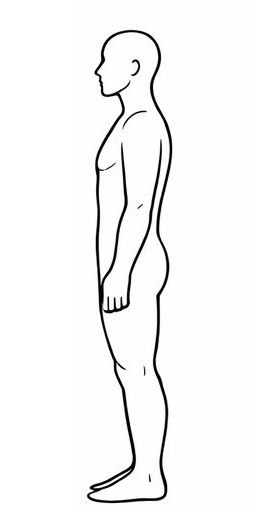
Choose which body chart to include in session notes. The Simple chart lets you click anywhere on four body views to place pain markers. The Clinical version uses 41 anatomical zones with 0–9 severity scoring and per-zone notes — including a full Spine view (Cervical, Thoracic, Lumbar, Sacrum, Pelvis) — ideal for detailed assessments and AI analysis with MyoMind.
Calendar & Email Integrations How-to
Connect your calendar account to automatically create events when booking sessions. Each practitioner connects their own account.
Google Calendar Integration
Connect your Google account to automatically create calendar events and send invites to clients.
Microsoft Outlook / Microsoft 365 Integration
Connect your Microsoft account to access Outlook Calendar and Email for automated scheduling and client communications.
What you get:
- Automatically create Outlook calendar events for sessions
- Send appointment reminders via Outlook email
- Invite clients to sessions with calendar events
- Works with personal Outlook and Microsoft 365 business accounts
Virtual Sessions
Enable virtual sessions to offer video appointments alongside in-person visits. When booking, staff can choose in-person or virtual — a meeting link is auto-generated and included in the confirmation email.
Mailchimp — Client Campaigns
Sync your client list to Mailchimp and send targeted campaigns based on follow-up status, session type, and package data.
Email Reminders How-to
Send automatic appointment reminders, booking confirmations, and cancellation notices directly to clients. Uses your connected AWS SES (email) and AWS SNS (SMS) via Firebase Cloud Functions.
SMS Notification Settings How-to
Configure when and how SMS text messages are sent to your clients. Unlimited SMS appointment reminders are included in your plan at no extra charge.
Website Integration NEW
Embed a booking widget directly on your website. New clients register and wait for your approval — returning clients book directly. Manage your API keys, embed code, widget theme, and platform setup guides.
Opens in a new page — embed snippets, theme options, platform guides, and full API reference.
Auto-Logout Duration
Automatically log out staff after a period of inactivity to protect client health records. Activity like mouse movement, typing, or scrolling resets the timer.
Access & Audit Log
PHIPA-compliant audit trail of all access to client health records. Every view, edit, export, and deletion is logged with timestamps, user identity, and field-level change details.
| Timestamp | User | Action | Client | Details |
|---|---|---|---|---|
My Profile
Your name and email as they appear across MyoMesh — in calendar invites, receipts, and session notes.
Practice Setup Wizard
Walk through all your key settings step by step. Takes about 5 minutes.
Appearance
Client Data Management
Import clients from a CSV or Excel file, or export your current client list for backup or migration.
Download a complete record for any client including their demographics, session history, clinical notes, body charts, invoices, and audit trail. Use this for patient record requests, care transfers, or regulatory inquiries.
Open any client's profile and click Download Complete Record in the top-right corner.
Download everything — all clients, sessions, notes, invoices, audit logs, and settings in a single JSON file. Recommended before closing your account or for complete backup.
Request permanent deletion of all client records, sessions, clinical notes, invoices, staff accounts, and settings. Only the account owner can initiate this.
Subscription & Billing How-to
Manage your MyoMesh subscription, change your plan, update payment method, or view billing details.