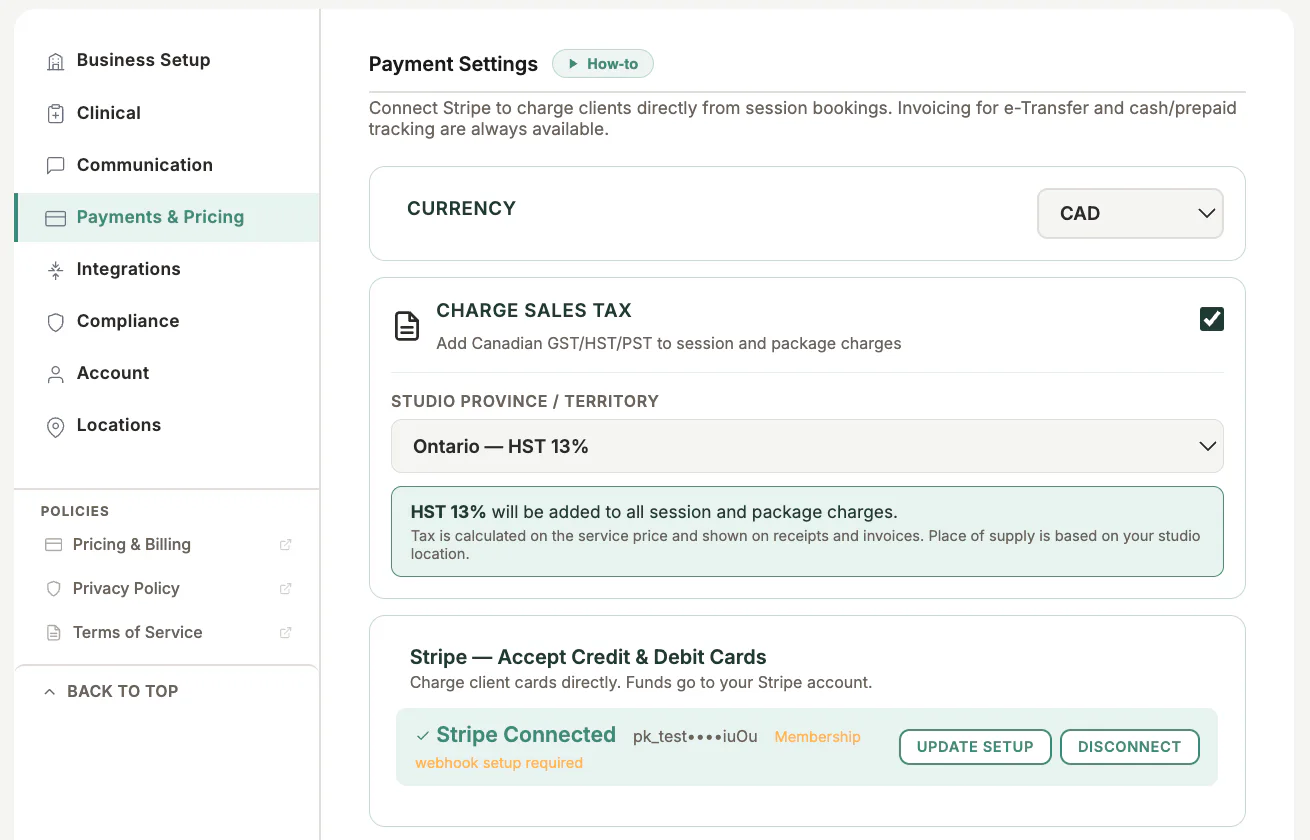
Where to find it
Open Settings, choose Payments & Pricing, then open Payment Settings.
Step by step
1
Use the business Stripe account
Sign in to the Stripe account that should receive this organisation’s payments.
2
Start the connection
Choose the Stripe connection option and complete the secure Stripe prompts.
3
Finish required account details
Stripe may require business, representative, bank, and tax information before payouts are enabled.
4
Return to MyoMesh
Confirm that Payment Settings shows Stripe as connected.
5
Run a controlled test
Use the correct Dev or live mode and verify the resulting payment in the matching Stripe dashboard.
Important checks
- Never paste Stripe secret keys into email or support messages.
- Dev/test payments and Production/live payments appear in different Stripe modes.
- Memberships require a working Stripe connection.
Test safely: Use Firebase Dev and Stripe test mode for workflow tests. Do not create live client, payment, package, or membership records just to test a guide.