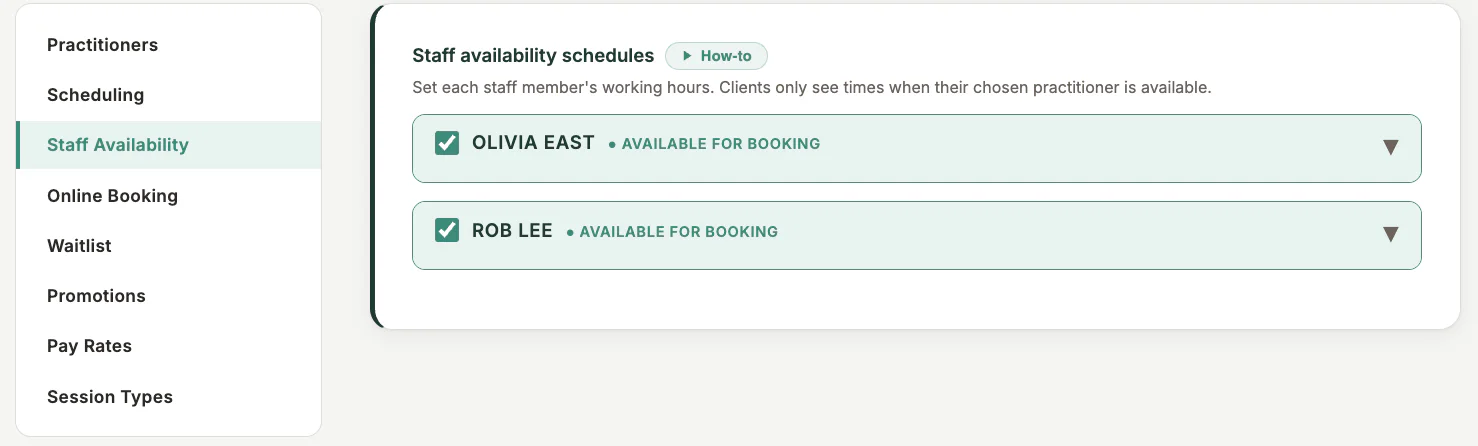
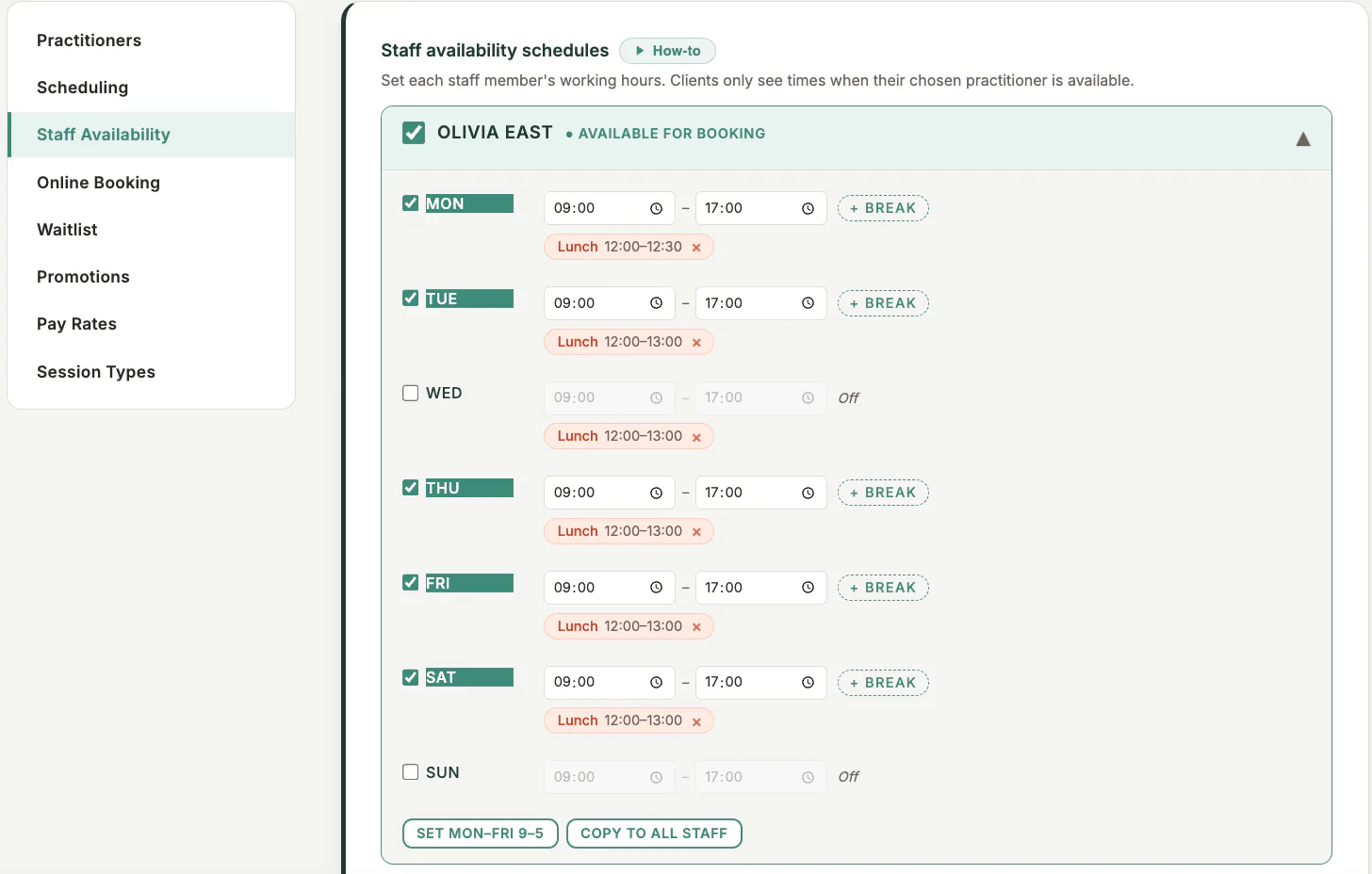
Where to find it
Open Settings and choose the practitioner or staff availability section. Practitioners may also have access to My Availability.
Step by step
1
Confirm the business time zone
Check the organisation time zone before setting hours, especially for virtual services.
2
Select the practitioner
Owners and administrators should verify whose schedule they are editing.
3
Set working days and hours
Add the regular start and end time for each available day.
4
Add breaks or blocked periods
Exclude lunch, travel, or other periods that should never be offered.
5
Save and test
Check the calendar and public booking page on several dates, including a daylight-saving transition if relevant.
Important checks
- Times are interpreted in the saved business time zone.
- Existing bookings are not automatically moved when availability changes.
- Use calendar blocks for one-off exceptions rather than rewriting the regular schedule.
Test safely: Use Firebase Dev and Stripe test mode for workflow tests. Do not create live client, payment, package, or membership records just to test a guide.