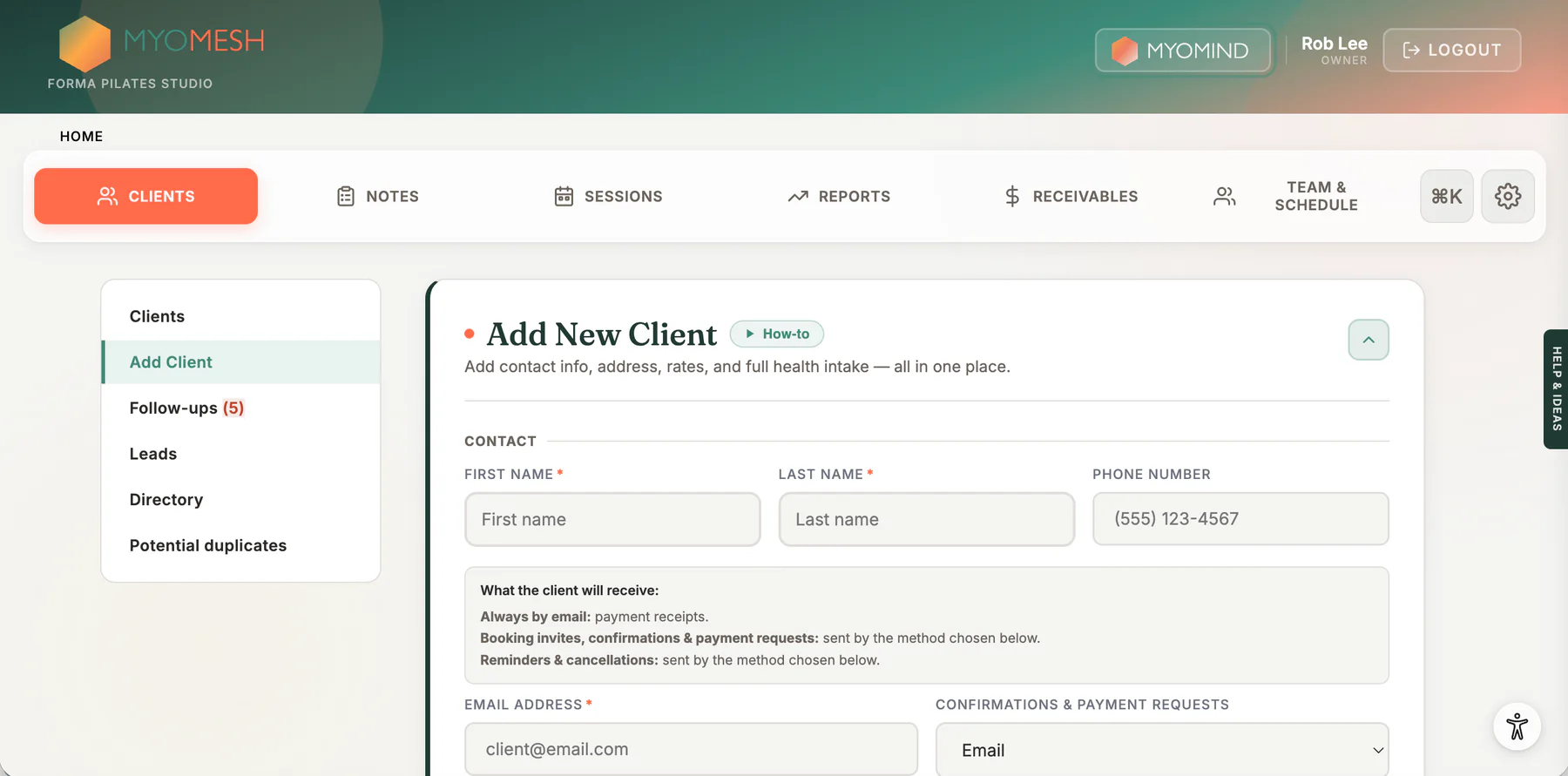
Adding a client in MyoMesh captures everything in one place — contact info, custom rates, session notes, the liability waiver, and a full health intake form. Here's exactly how to do it.
Add Client Form
Coming soon
Watch the walkthrough · ~3 min
Where to find it
Open the app and click Clients in the top navigation bar. Then click + Add New Client in the sub-menu. The add-client form will expand on the page.
Step by step
1
Navigate to Clients
Click Clients in the top navigation, then click + Add New Client in the sub-menu. The form expands on the page — no separate modal or page load.
2
Fill in contact information (required)
First Name, Last Name, and at least one contact method are required. Enter either an email address or a phone number; the client does not need both.
Phone Number — can identify the client for online booking and is used for SMS appointment reminders when enabled
Email Address — can identify the client for online booking and is used for booking confirmations, receipts, and intake links
Notification Preference — choose Email, SMS, or None
3
Add address (optional)
Street Address, City, Province (dropdown), and Postal Code. Useful for records but not required to book sessions.
4
Set session rates (optional)
Under the Practice section, you can set individual per-session rates for this client:
Private — e.g., $125 (shows the studio default)
Duet — e.g., $65
Trio — e.g., $45
Group Class — e.g., $30
Free Intro — e.g., $0
Leave these blank unless this client has custom pricing that differs from your default rates.
5
Add session notes (optional)
The Session Notes field is a free-text area for things like equipment preferences, known injuries, or contraindications. This note appears whenever you open one of this client's sessions — handy as a quick reminder before each appointment.
6
Click "Add Client"
Scroll to the bottom of the form and click the Add Client button. The client is created and their profile is immediately accessible.
Tip: If "Session type pricing active" shows on a client's profile, all clients default to the rates set in Settings. You only need to fill in custom rates here if a client has different pricing.
What to do after adding a client
Once the client is added, their profile becomes the hub for all their records. From there you can:
From the client profile you can
Send the health intake form — click "Send Intake Form" to email them a branded link. They fill it in, you see the answers in their profile.
Send the liability waiver — digital waiver signing link can be sent from the profile. Auto-send is off by default.
Book their first session — click the calendar or go to Sessions → Book New Session and search for their name.
Download a complete client record — sessions, notes, body charts, invoices, and audit trail in one PDF.
Open MyoMind — tap the MyoMind button on their profile to access AI-assisted notes, summaries, and treatment plans.
Tips & things to know
Importing many clients at once? If you're migrating from another system, use the bulk import tool in Settings → Account → Client Data Management instead of adding them one by one. See How to import clients from a spreadsheet →
Search works immediately. Once a client is added, you can find them by name, email, or phone from the Clients page search bar. Each client also gets a unique Client ID (visible in their profile) that you can copy for integrations or transfers.
Look for the How-to button. Many sections in the app have a " How-to" button built in — these link to guides like this one as video walkthroughs are added.
Was this guide helpful?
Your feedback helps us improve every article.
Thanks for the feedback — we'll keep improving this guide.