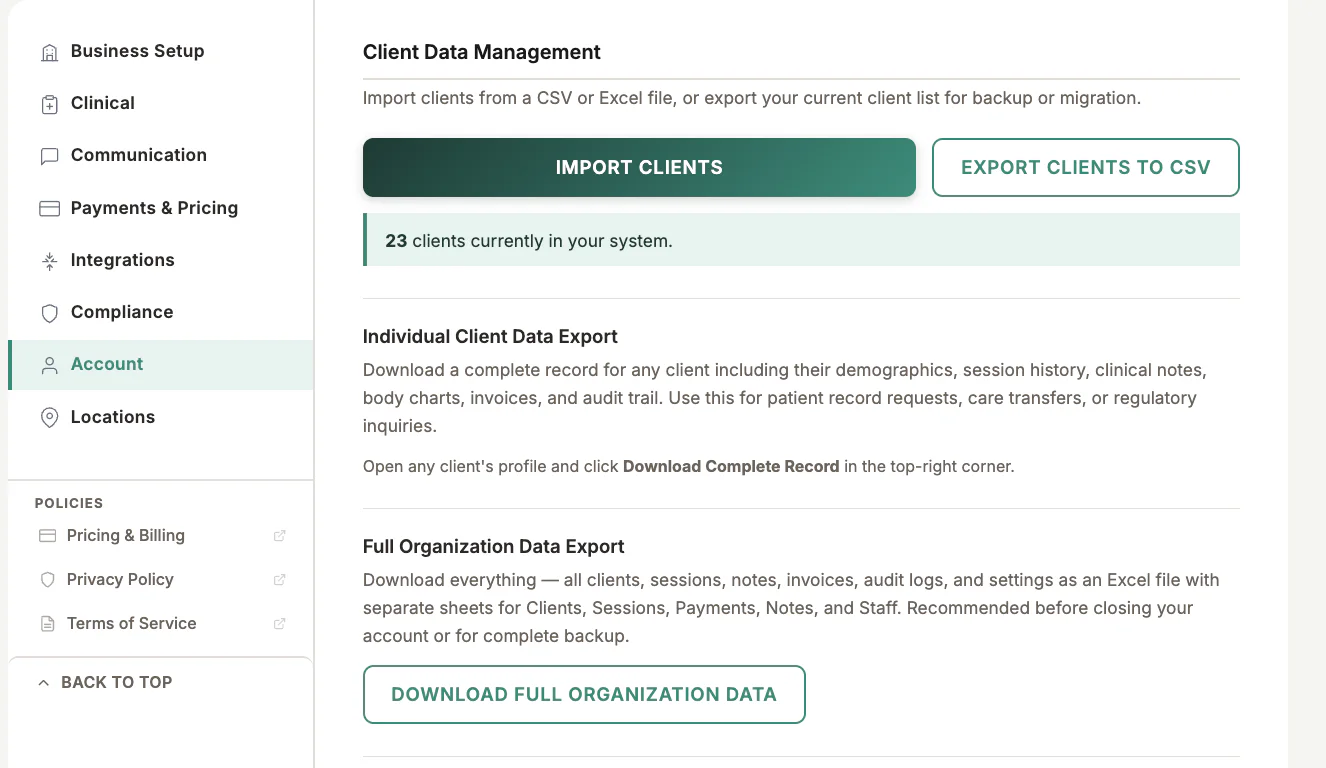
Where to find it
Open Settings, choose Account, then find Client Data Management.
Step by step
Prepare the file
Use one row per client and keep clear column headings such as first name, last name, email, phone, and date of birth.
Open the import tool
Choose the client import option under Client Data Management and select the spreadsheet from your device.
Review the column mapping
Confirm that each source column maps to the correct MyoMesh field. Leave irrelevant columns unmapped.
Review before importing
Check the preview for missing names, invalid dates, or duplicate email addresses. Correct the source file if needed.
Complete the import
Start the import and review the result summary before working with the new client records.
Important checks
- Keep an untouched copy of the original export.
- Import a small sample first when the source system uses unusual date formats.
- A client email should identify one client record; resolve duplicates before importing.
Test safely: Use Firebase Dev and Stripe test mode for workflow tests. Do not create live client, payment, package, or membership records just to test a guide.