
Team messages
Staff updates and scheduled class waitlist activity.
Select a message to read it and add a note.
Business Information How-to
Your business name appears in the header and will be used in calendar invites and emails sent to your clients.
Your logo appears on the client booking page and in email communications. Upload a square image — max 600×600px, under 2MB. PNG or JPG recommended.
Shown on your public booking page
This creates a clean, branded URL for your business. It's used in your client booking page and browser address bar.
Used to send appointment reminders at the correct local time, including daylight-saving changes.
Required on insurance receipts if your business charges GST/HST. This appears on all receipts unless a practitioner has their own GST/HST number set.
Short code used in invoice numbers — e.g. HOM → HOM-20260629-001. Leave blank to use INV.
This tells MyoMind what kind of business you run — it shapes the language and focus of its briefs and session notes.
Rooms & Equipment
Add the rooms and equipment your practice uses. Choose a resource for each session. For resources containing several machines, configure individual machines below. You can mix rooms and equipment freely, or use just one type. Completely optional — leave any slots blank that you don't need.
Payment Settings How-to
Connect Stripe to charge clients directly from session bookings. Invoicing for e-Transfer and cash/prepaid tracking are always available.
Add Canadian GST/HST/PST to session and package charges
Choose the provider for new session, package and membership charges. Bank debit for new memberships is a separate option under the selected provider. Save the account details below, then select the provider here and click Save payment provider to activate it. Existing subscriptions continue with their original provider.
Client booking payment options
Choose what clients can use in Apple, Android, the booking page and widget. These choices do not change the payment methods staff can record.
Card payment appears only when the selected payment provider is ready. Eligible membership and package credits remain available.
E-transfer bookings are awaiting payment until staff confirm receipt. Requiring payment before booking hides e-transfer and pay at studio.
Send payment requests for clients who pay via Interac e-Transfer.
Record cash or cheque payments received in person.
Record debit or credit card payments collected on your own bank terminal. MyoMesh never receives the card details.
Overdue booking alerts
When On, confirmed unpaid client balances that are at least 7 days overdue show booking warnings, require a staff override note, and block online booking. Turn Off if you bill clients after a series of sessions. Balances remain in Receivables and reports. Manually applied client alerts and booking holds still apply.
Cancellation Policy How-to
Define your studio's cancellation window and how late cancellations and no-shows are handled. This applies to both prepaid packages and single-session clients.
Client cancellations & acknowledgement
Shown in Apple, Android, the booking page and widget. Custom wording does not automatically charge fees. Accepted wording is saved with each booking.
Late-credit enforcement uses the notice window below and applies when policy enforcement is enabled. Money fees and refunds require staff review.
Service and practitioner variations
Leave blank to use the default. Practitioner wording takes priority over service wording; each client sees one resolved policy.
Payment & Prepaid Settings
Prepaid Packages
Set up up to 12 prepaid packages. Each package includes a set number of sessions at a fixed price, valid for a specific time period. Assign packages to clients from their profile.
Liability Waiver How-to
Configure how your practice collects liability waivers from clients. You can send a digital signing link or track paper waivers manually.
Digital waivers are off. A manual "Waiver on File" checkbox will appear on each client profile for paper-based tracking. Toggle digital waivers on above to send signing links.
Notes & Body Chart
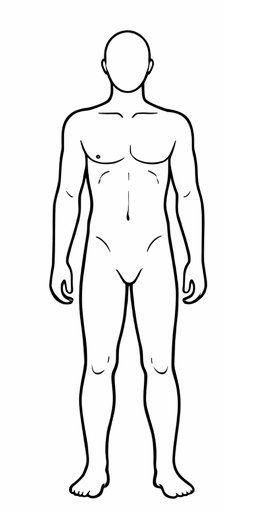
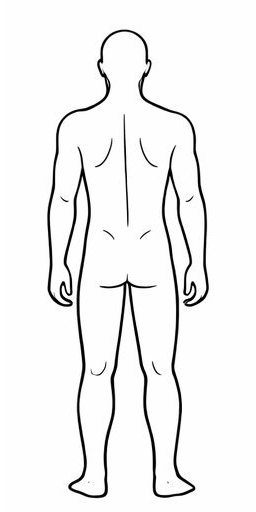
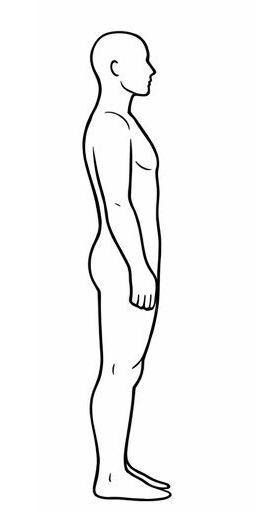
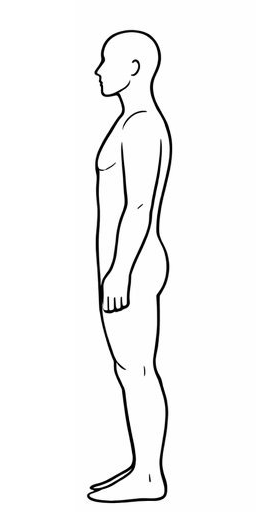
Choose the default chart for the organization. Each practitioner can override this from My Profile. The Simple chart lets you click anywhere on four body views to place pain markers. The Clinical version uses 41 anatomical zones with 0–9 severity scoring and per-zone notes — including a full Spine view (Cervical, Thoracic, Lumbar, Sacrum, Pelvis) — ideal for detailed assessments and AI analysis with MyoMind.
Health Intake Form How-to
Choose which sections appear in the client intake form. Sections turned off here won't appear when sending intake forms to clients.
Virtual Session Integrations How-to
Connect a video conferencing provider to automatically generate meeting links for virtual sessions.
Virtual Sessions
Enable virtual sessions to offer video appointments alongside in-person visits. When booking, staff can choose in-person or virtual — a meeting link is auto-generated and included in the confirmation email.
Manual insurance claims & payments
Record claims submitted outside MyoMesh, insurer decisions, money received by the practice, and the client’s remaining balance.
Email Reminders How-to
Send automatic appointment reminders, booking confirmations, and cancellation notices directly to clients. Uses your connected AWS SES (email) and AWS SNS (SMS) via Firebase Cloud Functions.
Email Branding Colours
Customize the colours used in all studio emails sent to your clients.
SMS Notification Settings How-to
Configure when and how SMS text messages are sent to your clients. Up to 5,000 SMS messages per account each month are included in your plan at no extra charge.
Safe Sender Message
Send this to new clients so your emails and SMS messages don't land in spam. Copy and paste into your welcome email or first message.
Website Integration NEW
Embed a booking widget directly on your website. New clients register and wait for your approval — returning clients book directly. Manage your API keys, embed code, widget theme, and platform setup guides.
Manage Widget & API KeysOpens in a new page — embed snippets, theme options, platform guides, and full API reference.
Auto-Logout Duration
Automatically log out staff after a period of inactivity to protect client health records. Activity like mouse movement, typing, or scrolling resets the timer.
Access & Audit Log
PHIPA-compliant audit trail of all access to client health records. Every view, edit, export, and deletion is logged with timestamps, user identity, and field-level change details.
| Timestamp | User | Action | Client | Details |
|---|---|---|---|---|
My Profile
Your name and email as they appear across MyoMesh — in calendar invites, receipts, and session notes.
Client Data Management
Import clients from a CSV or Excel file, or export your current client list for backup or migration.
Download a complete record for any client including their demographics, session history, clinical notes, body charts, invoices, and audit trail. Use this for patient record requests, care transfers, or regulatory inquiries.
Open any client's profile and click Download Complete Record in the top-right corner.
Download everything — all clients, sessions, notes, invoices, audit logs, and settings as an Excel file with separate sheets for Clients, Sessions, Payments, Notes, and Staff. Recommended before closing your account or for complete backup.
Request permanent deletion of all client records, sessions, clinical notes, invoices, staff accounts, and settings. Only the account owner can initiate this.
Subscription & Billing How-to
Manage your MyoMesh subscription, change your plan, update payment method, or view billing details.
